

Video Downloader – Fast Video Downloader & Recorder for Chrome and Edge
Save MP4, HD and 4K videos, reels, shorts and live streams in one click.
Video Downloader is a browser extension that finds the video on the page you are watching and lets you save it to your computer. It also includes a built-in recorder for live streams and online lectures that a regular downloader cannot fetch.

Features
One-click download
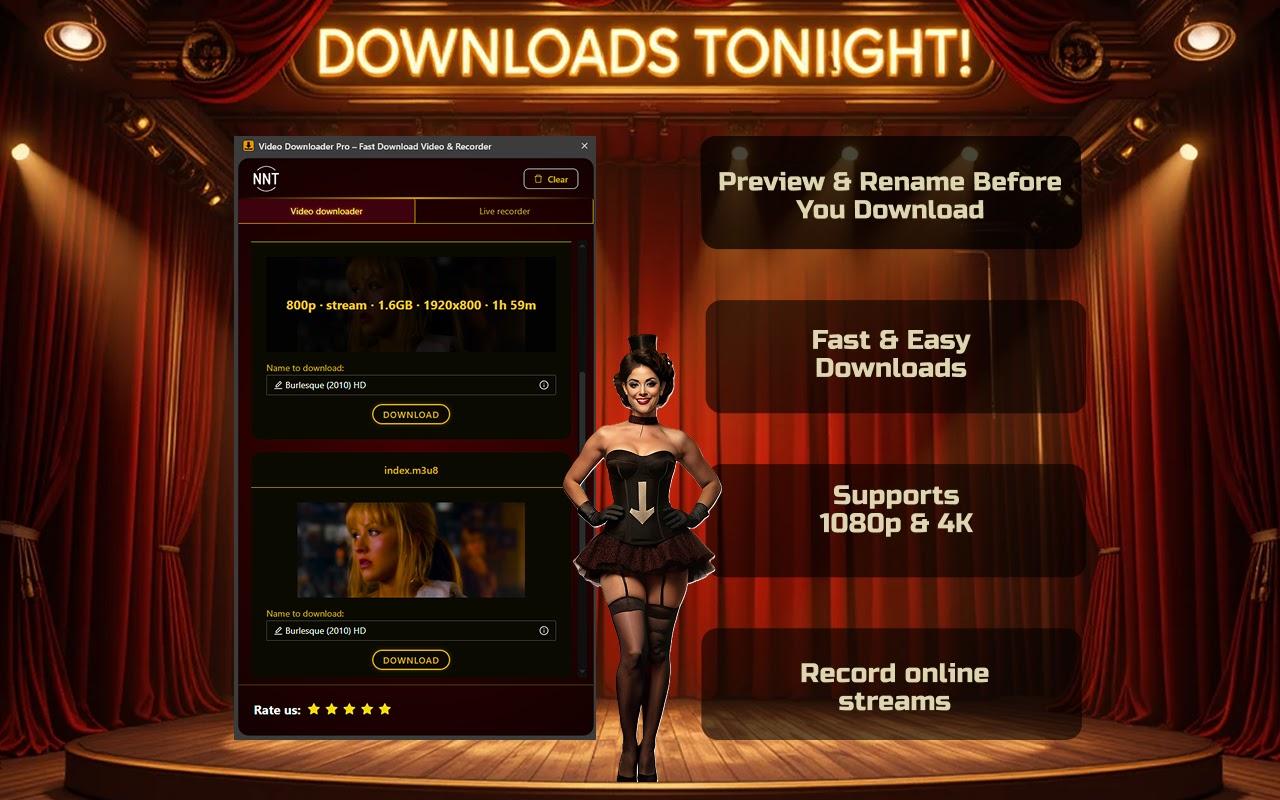
The extension automatically detects video files on the page. Click the download button and save the video.
All popular formats
Save MP4, HD, Full HD and 4K video. It works with advanced web formats such as HLS, M3U8 and TS streams.
Reels, shorts and clips
Detect and save short clips, reels, shorts and stories directly from the page you are viewing.
Built-in live recorder
Record live streams and broadcasts, or capture online lectures and videos that traditional downloaders cannot fetch.
Preview and rename
See the resolution, size and duration of each detected video, and rename the file before you download it.
High-speed downloads
Downloads use multi-threading to save files as fast as the source server allows.
Safe and private
No malware and no hidden adware. Your privacy is protected.
12 languages
The extension interface is available in English, German, Spanish, French, Italian, Polish, Portuguese, Hindi, Indonesian, Japanese, Korean and Chinese.
How to use Video Downloader
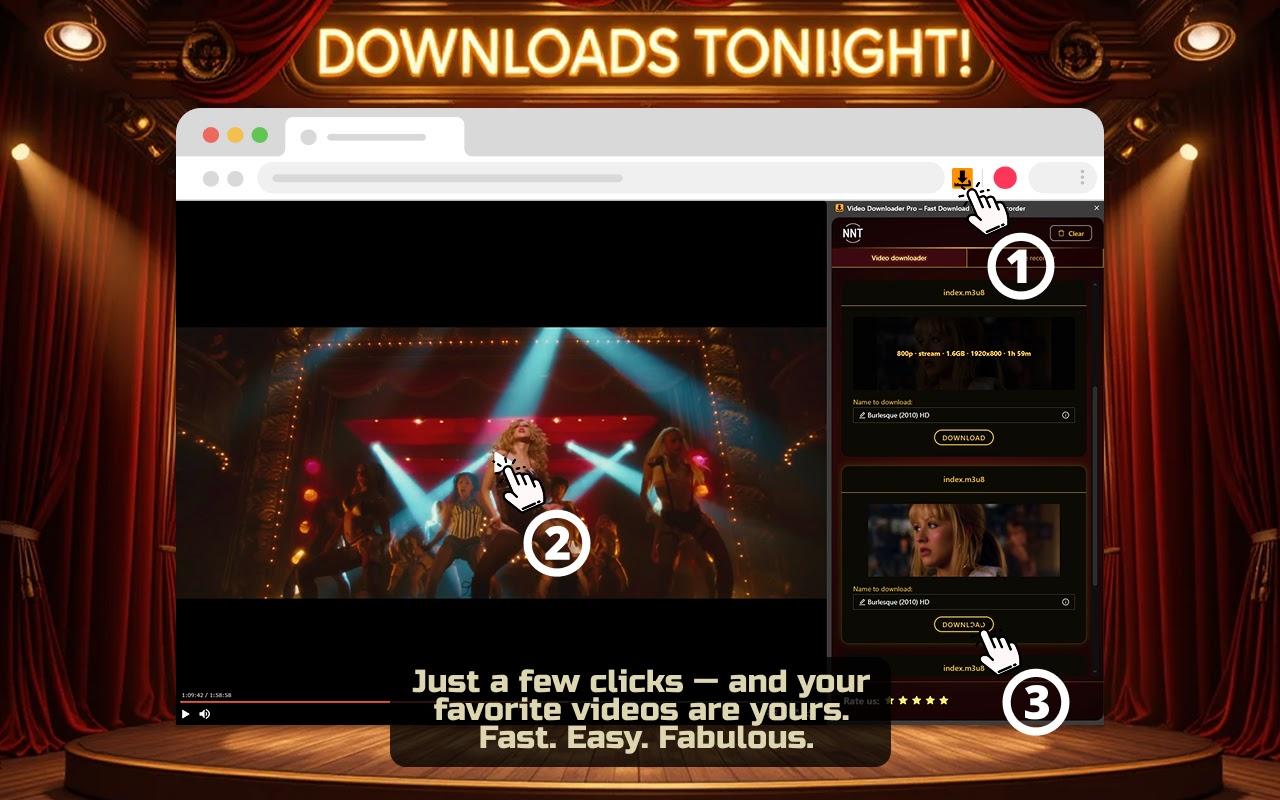
- Install Video Downloader from the Chrome Web Store or Microsoft Edge Add-ons.
- Open the website with the video you want to save and start playing it.
- Click the extension icon in the browser toolbar.
- Choose the video quality you want, optionally rename the file, and click Download.
More extensions from NoName Technology

Assistant for Instagram™
Downloader for Instagram™ and uploader for Instagram™ in one app. Instagram video controls.

ScreenJoy — Pet & Effects
Make your browser your own. Mix animated characters, overlays, and cursors to create a unique, fun experience.

Link to Panel by NNT
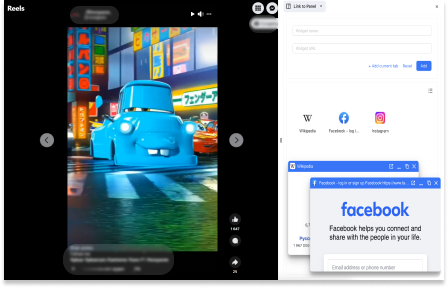
Expand your Side Panel experience to boost up productivity and multitasking with our extension.

Picture in picture
Switch videos into Picture-in-Picture (PiP) mode, allowing you to freely browse the internet or work on other web pages.
Wikipedia SidePanel by NNT
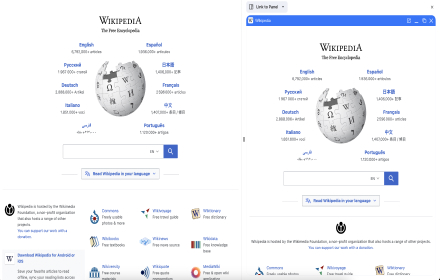
The largest free encyclopedia in your sidebar! Quick search and convenient viewing in all tabs of one browser window. Search function in the context menu.